Targets
Set targets for margin, POAS, MER and CAC, see them on your KPIs and get alerts.
On this page
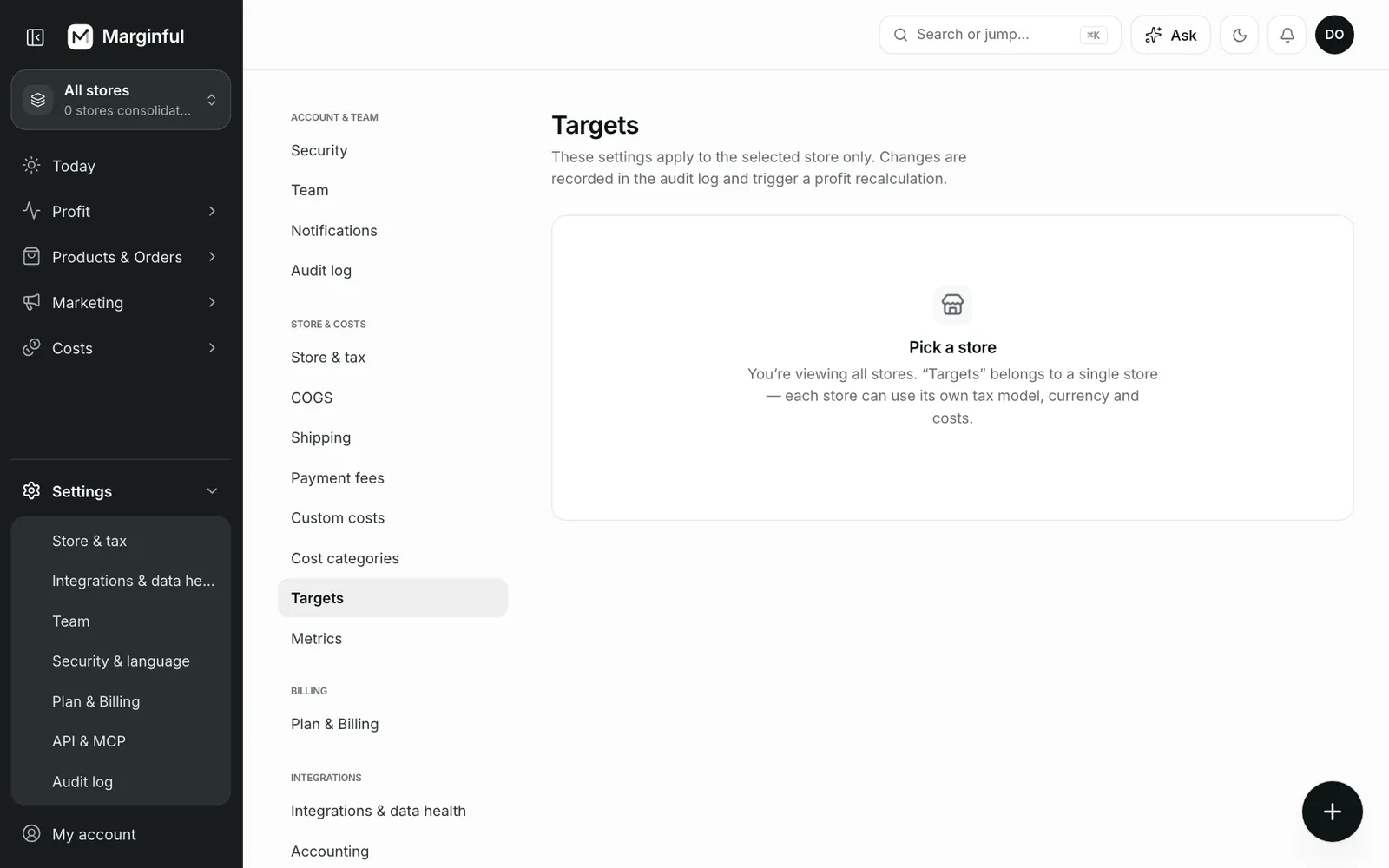
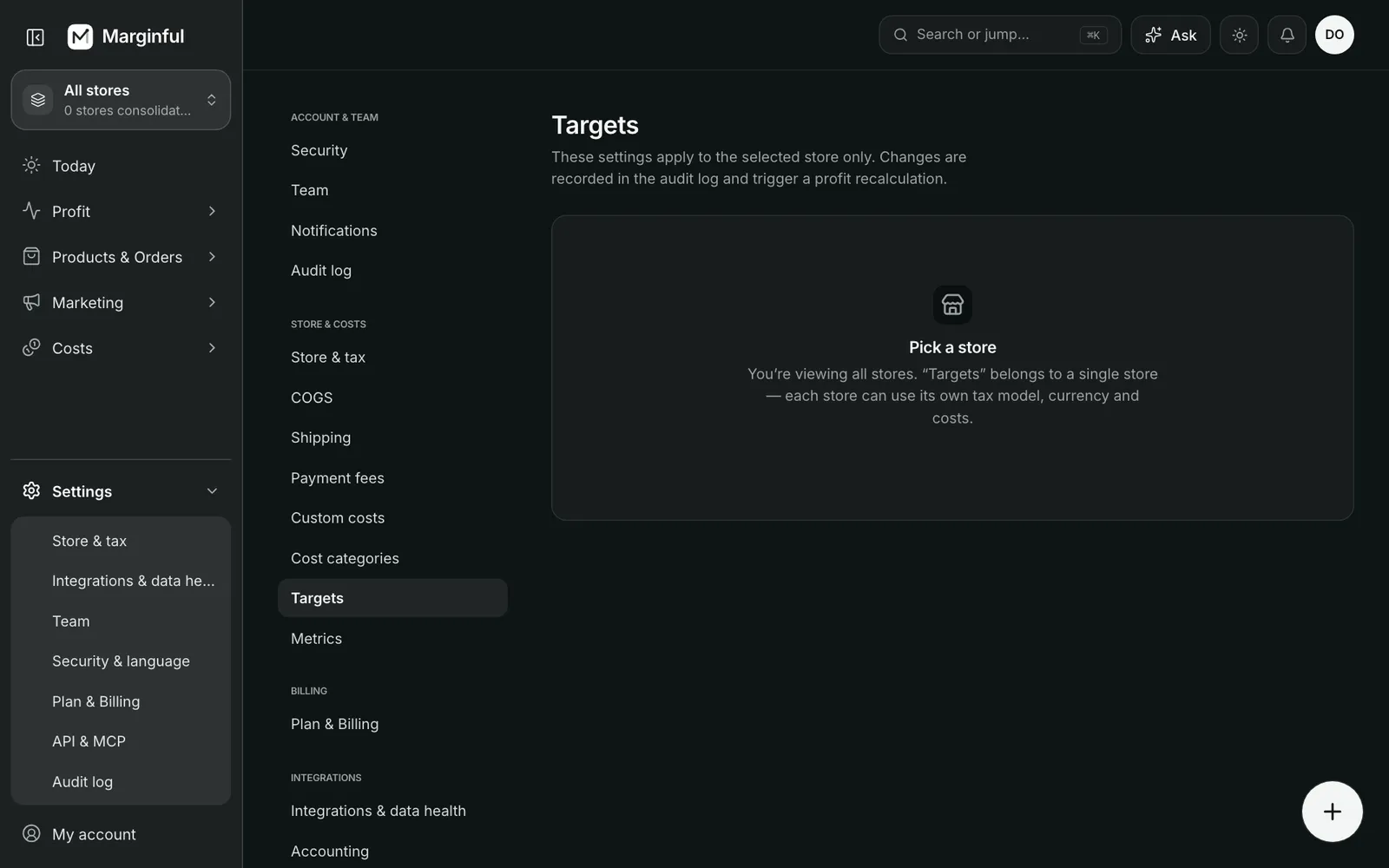
Targets turn a number into a judgement. KPIs show a green or red dot against your targets, and alerts fire when a metric misses its target. Targets are set per store in Settings → Targets.
Available targets
| Target | Direction | Meaning |
|---|---|---|
| Net margin | At least | Net profit ÷ net revenue |
| Gross margin | At least | Gross profit ÷ net revenue |
| Product margin | At least | Per-product net margin floor for alerts and Advisor |
| POAS | At least | Profit on ad spend; 1.0 = break-even |
| MER | At least | Net revenue ÷ total ad spend |
| CAC | At most | Ad spend ÷ new customers |
Set a target
Open Settings → Targets
Pick the store first if you are viewing all stores.
Enter the value
Margins as a percentage, for example 20. POAS and MER as a ratio, for example 1.5. CAC as an amount.
Save
The target shows on KPIs right away. Alerts use it from the next hourly check.
The keep bar
On Today, Overview and Dashboards, the keep bar shows how much of each sale you keep. With a net margin target, a marker shows the target on the bar and whether you are above or below it, in percentage points.
Was this page helpful?